Record staff time off
Log when someone's unavailable so Catertoo warns you before you assign them to an overlapping event.
Last updated May 25, 2026
Add time off
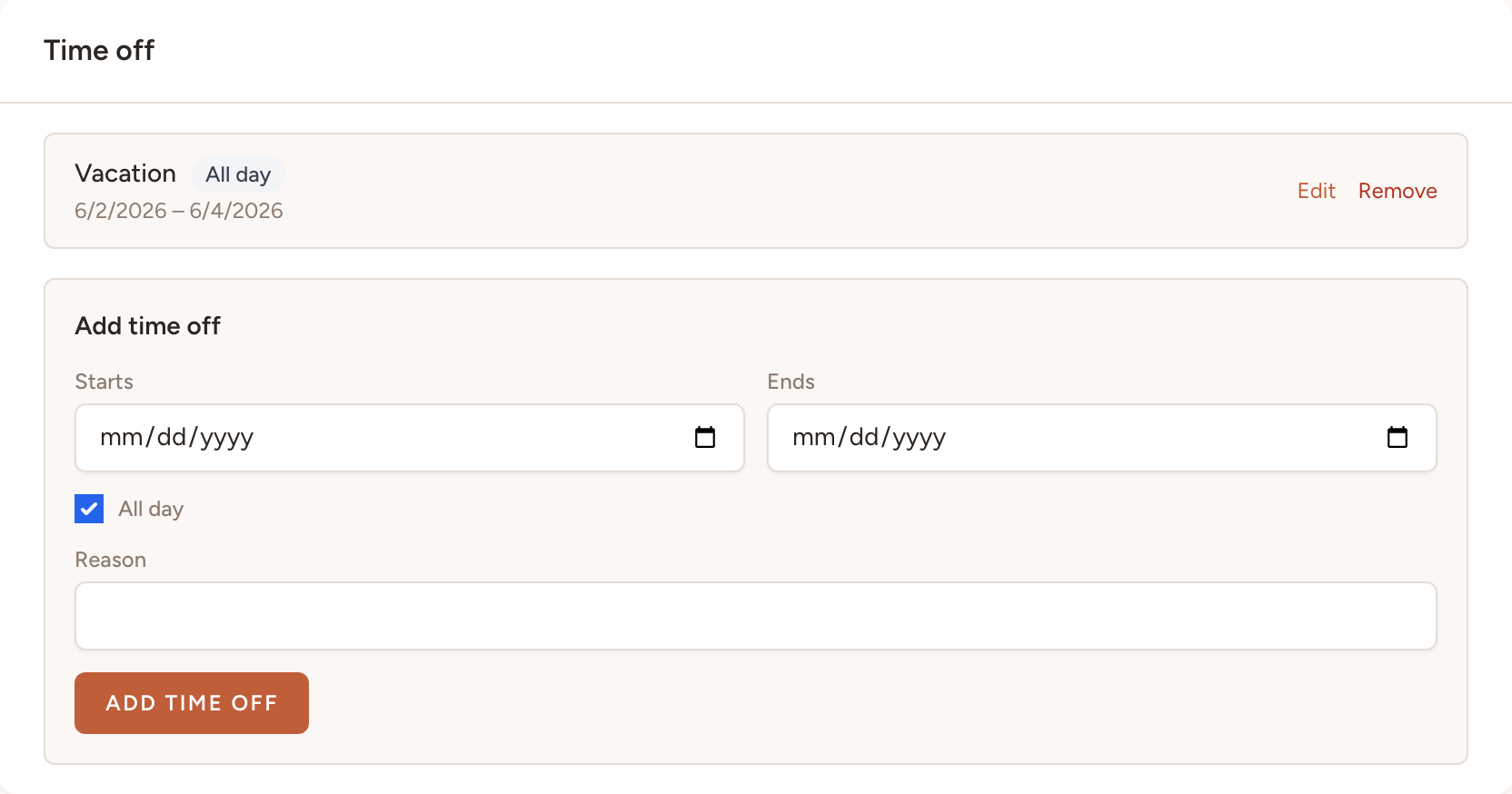
- Open the staff member's profile.
- Scroll to the Time off section.
- Fill in the Add time off form:
- Starts — start date (or date and time if not all day)
- Ends — end date (or date and time if not all day)
- All day — tick this for full-day or multi-day absences; untick it for specific-hour blocks
- Reason — optional note (for example: "Vacation" or "Doctor's appointment")
- Click Add time off.

The period is immediately active and will be checked during future assignments. You can edit or remove any time-off period from the same section on the staff member's profile.
How it shows up
When you assign staff to an event, Catertoo checks whether the staff member's shift overlaps any of their recorded time off. If it does, you'll see a warning naming the staff member and the conflicting period before you confirm.
You can choose someone else, adjust the shift times, or proceed anyway — the choice is yours.
Time off also appears on the calendar as a shaded background when you filter the calendar to that staff member, so you can see at a glance which days they're unavailable.
What's next?
- Assign staff to an event to put your team on the calendar.