Book an event and assign staff
Create an event, then assign your team — Catertoo warns you about double-bookings and time-off conflicts before you confirm.
Last updated May 25, 2026
Create the event
- Open Events and click New Event.

- Set the client, the date and time, and the venue or location details.
- Save the event. From here you can build a proposal for it and assign staff.
Events move through a status lifecycle so you always know where each booking stands — from an early inquiry through to a completed event.
Assign staff
Open the event to see its details and the Staffing section. The event detail page shows everything in one place: status, client, venue, guest count, and the staff already assigned.
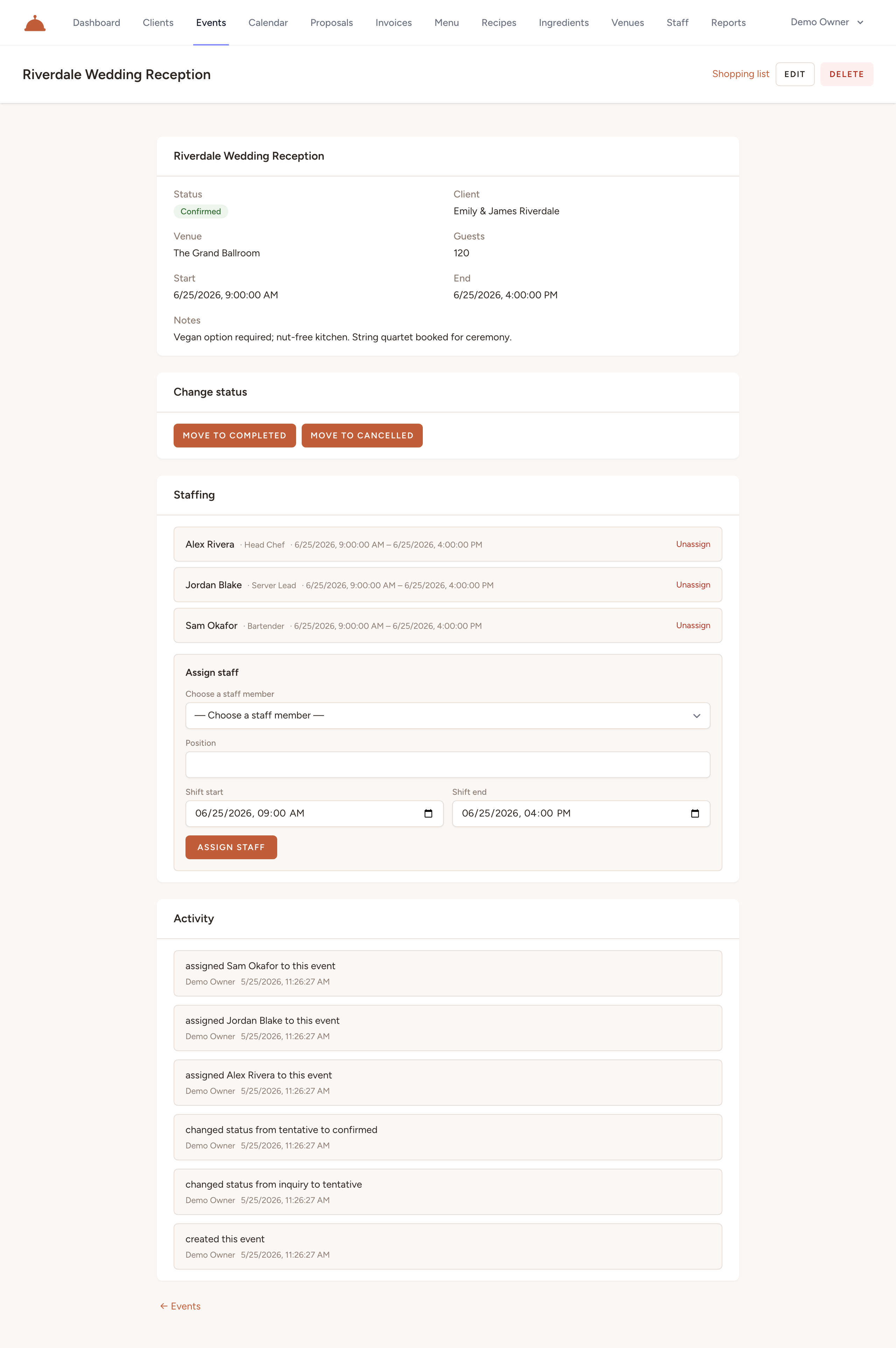
- In the Assign staff form, choose a staff member from the dropdown.
- Enter the Position and the Shift start and Shift end times.
- Click Assign staff to confirm.
Conflict warnings
Before confirming, Catertoo checks the staff member's schedule and flags two kinds of conflict:
- Double-booking — the staff member is already assigned to another event during that window.
- Time off — the staff member has approved time off that overlaps the shift.
If there's a conflict, Catertoo shows a warning with the details so you can choose someone else, adjust the times, or click Assign anyway to proceed regardless.
Managing time off
Record time off for a staff member so the conflict checker knows when they're unavailable. Time off shows up on the calendar and is factored into every future assignment check.
What's next?
- See your schedule on the calendar for a visual view of every event and staff member.