Add and invite staff
Add your team, then invite the people who need to log in — and revoke access when someone leaves.
Last updated May 25, 2026
Add a staff member
Your staff roster is the source for event assignments. Every team member you add here can be scheduled on events.
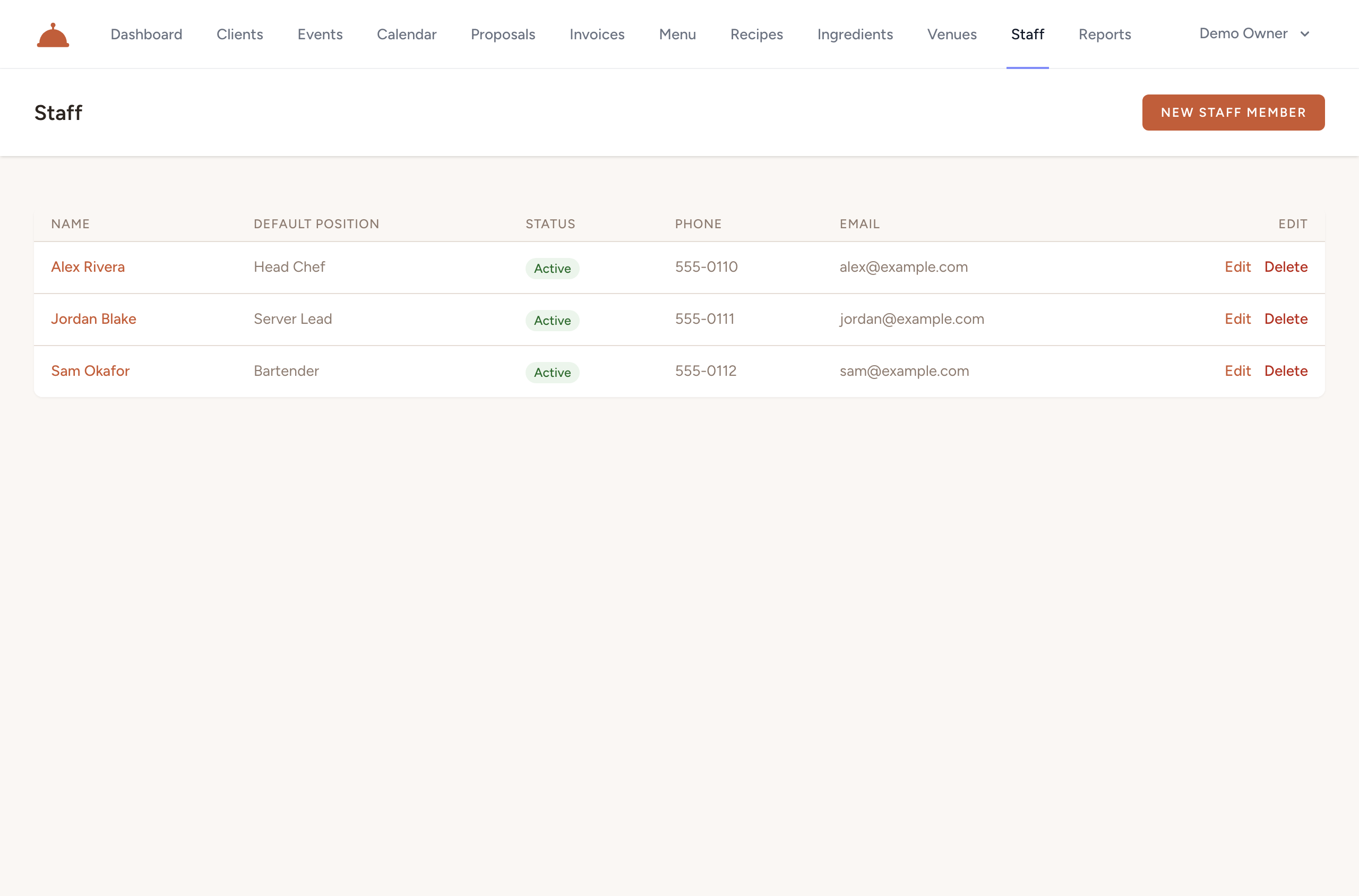
- Open Staff and click New Staff Member.

- Fill in the details:
- Name (required)
- Email — needed if you want to give them login access
- Phone
- Default position — pre-fills when you assign them to an event
- Status — Active or Inactive (only Active members can be assigned to events)
- Notes — any internal notes about this person
- Click Save. The staff member now appears in your roster and can be assigned to events.
Give them login access
If a staff member needs to see their own schedule, enable their login:
- Open the staff member's profile.
- Click Enable login.

- Catertoo generates a single-use invite link and shows it on the page so you can copy and share it.
- When the staff member opens the link, they set their own password and land on their staff portal.
In the staff portal, a logged-in team member can see their upcoming shifts and any time off on record — their own view only, nothing else in your account.
The staff member must have an email address on file before you can enable login.
Revoke login
If someone leaves or you need to cut off access:
- Open the staff member's profile.
- Click Revoke.

Their account is removed immediately. They cannot log in again unless you re-enable login. Revoking login does not delete the staff member or remove them from past event assignments.
What's next?
- Record time off so Catertoo can warn you about scheduling conflicts.
- Assign staff to an event to put your team on the calendar.