Connect your payouts
Link your Stripe account so clients can pay invoices online and money lands in your bank — a one-time setup.
Last updated May 25, 2026
Start onboarding
Go to Settings → Payments. If you haven't connected yet, the page shows a Connect Stripe button. Click it and you'll be taken directly to Stripe's secure onboarding form — Catertoo never sees your bank details.
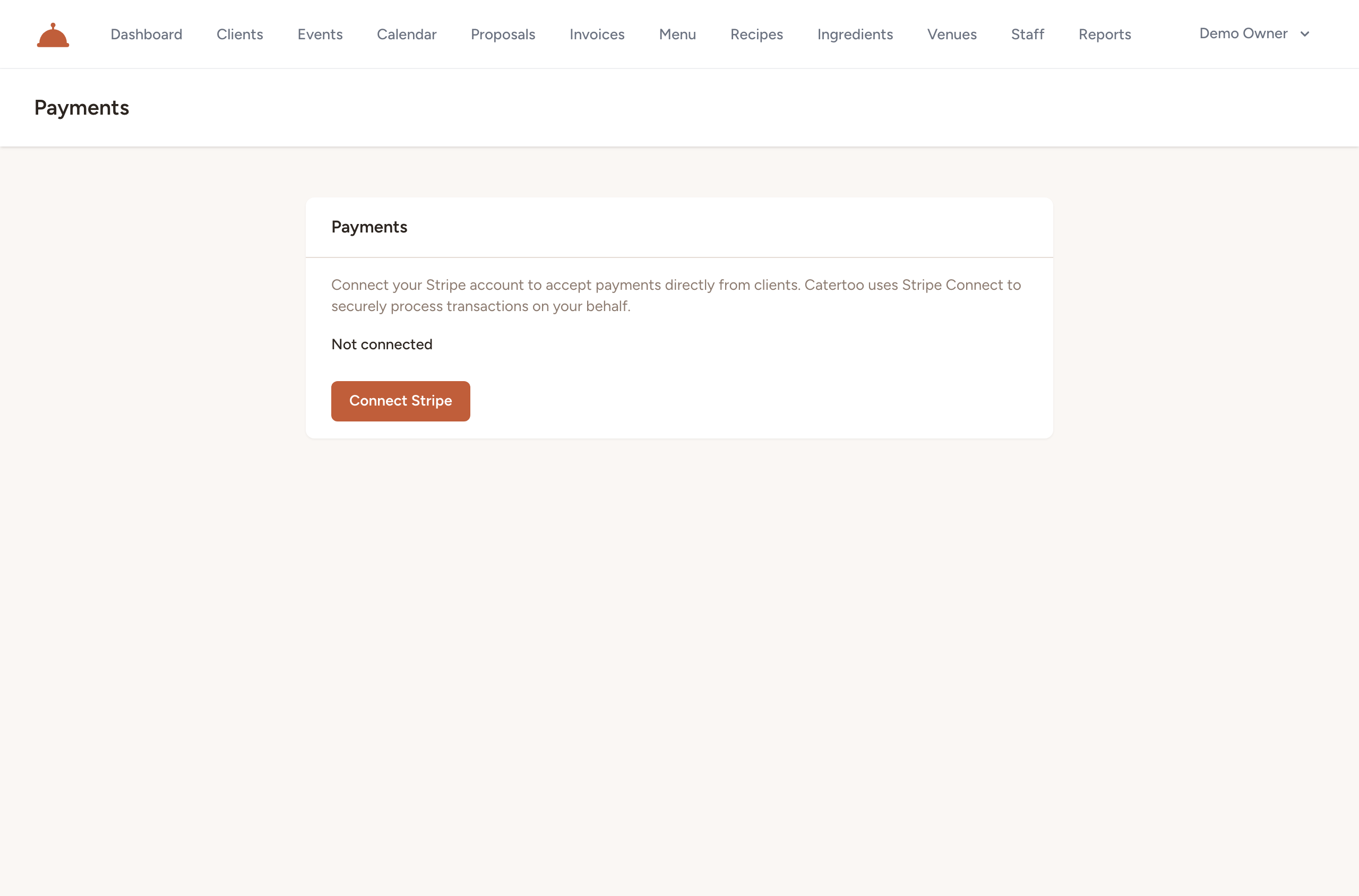
Stripe uses Express accounts, which means Stripe handles the identity verification, bank account linking, and payout schedule on your behalf.
- Open Settings → Payments from the account menu in the top right.

- Click Connect Stripe and complete the onboarding steps Stripe asks for.
- When you're done, Stripe sends you back to Settings → Payments automatically and Catertoo records whether charges and payouts are enabled on your account.
Finish in Stripe
If the onboarding link expires before you finish — or you close the tab partway through — return to Settings → Payments and click Continue onboarding. Catertoo generates a fresh link so you can pick up where you left off.
When you're ready to get paid
Once your account is fully set up, Settings → Payments shows all three capabilities confirmed:
- Charges enabled — you can accept card payments from clients.
- Payouts enabled — funds are transferred to your bank on Stripe's schedule.
- Details submitted — your identity and banking information are on file with Stripe.
As soon as charges are enabled your account is ready to collect, and a Manage on Stripe button appears. Click it to open your Stripe Express dashboard, where you can view your balance, payout history, and account settings.
Until charges are enabled, invoice pay links will not accept card payments. Get your account connected before sending your first invoice so clients can pay online right away.
What's next?
- Invoice and get paid to turn an accepted proposal into a pay link your client can use.