Send your first proposal
Build a proposal from your menu, add fees and tax, send it for the client's acceptance — and understand the lock-on-send lifecycle.
Last updated May 25, 2026
How proposals work
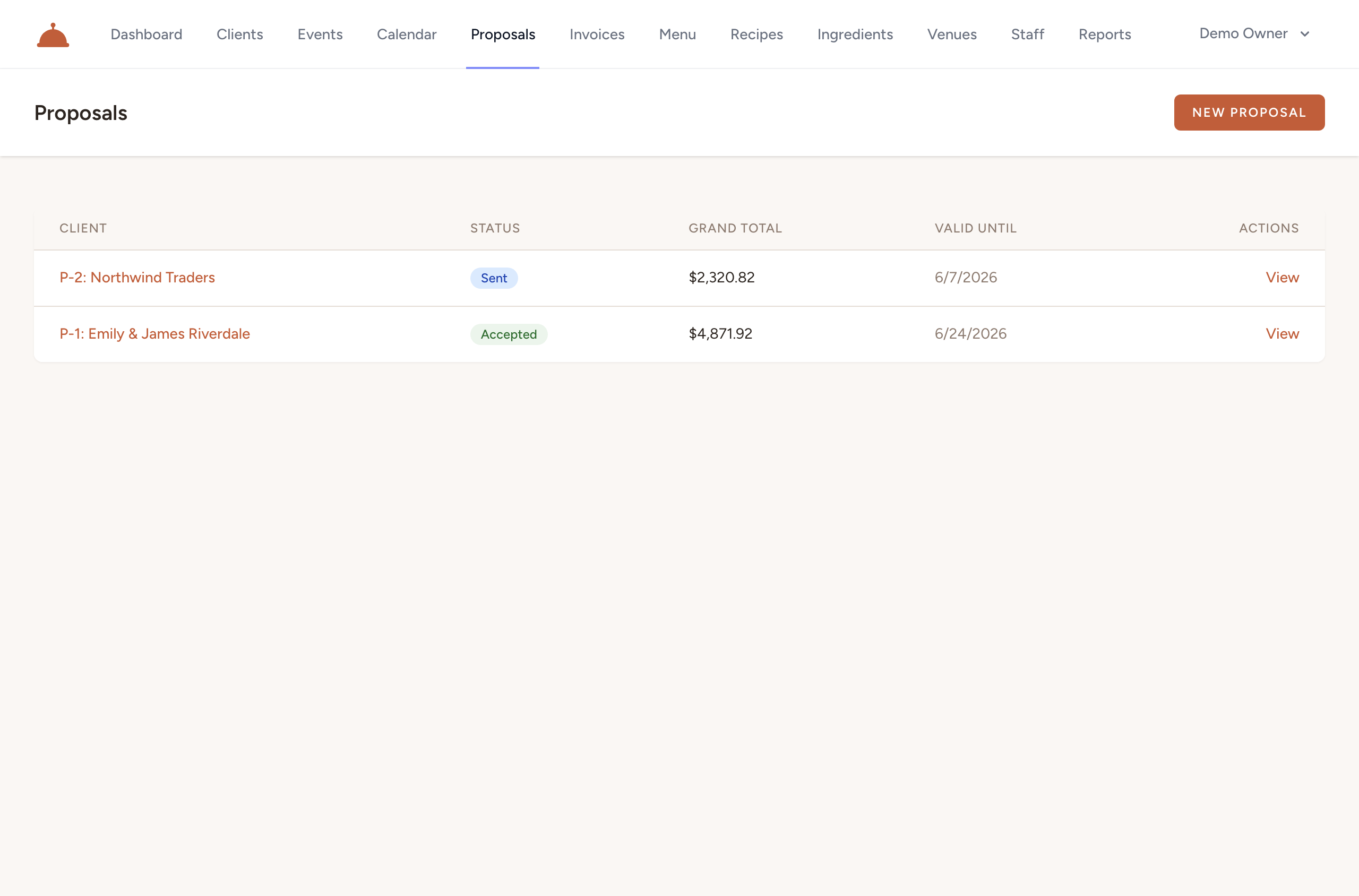
A proposal is tied to an event and a client. You build it from your menu, add any fees and tax, then send it. Once sent, the proposal locks so the numbers the client reviews can't change underneath them. The lifecycle is Draft → Sent → Accepted (or Declined).
Build the proposal
- Open Proposals and create a new proposal for the event.
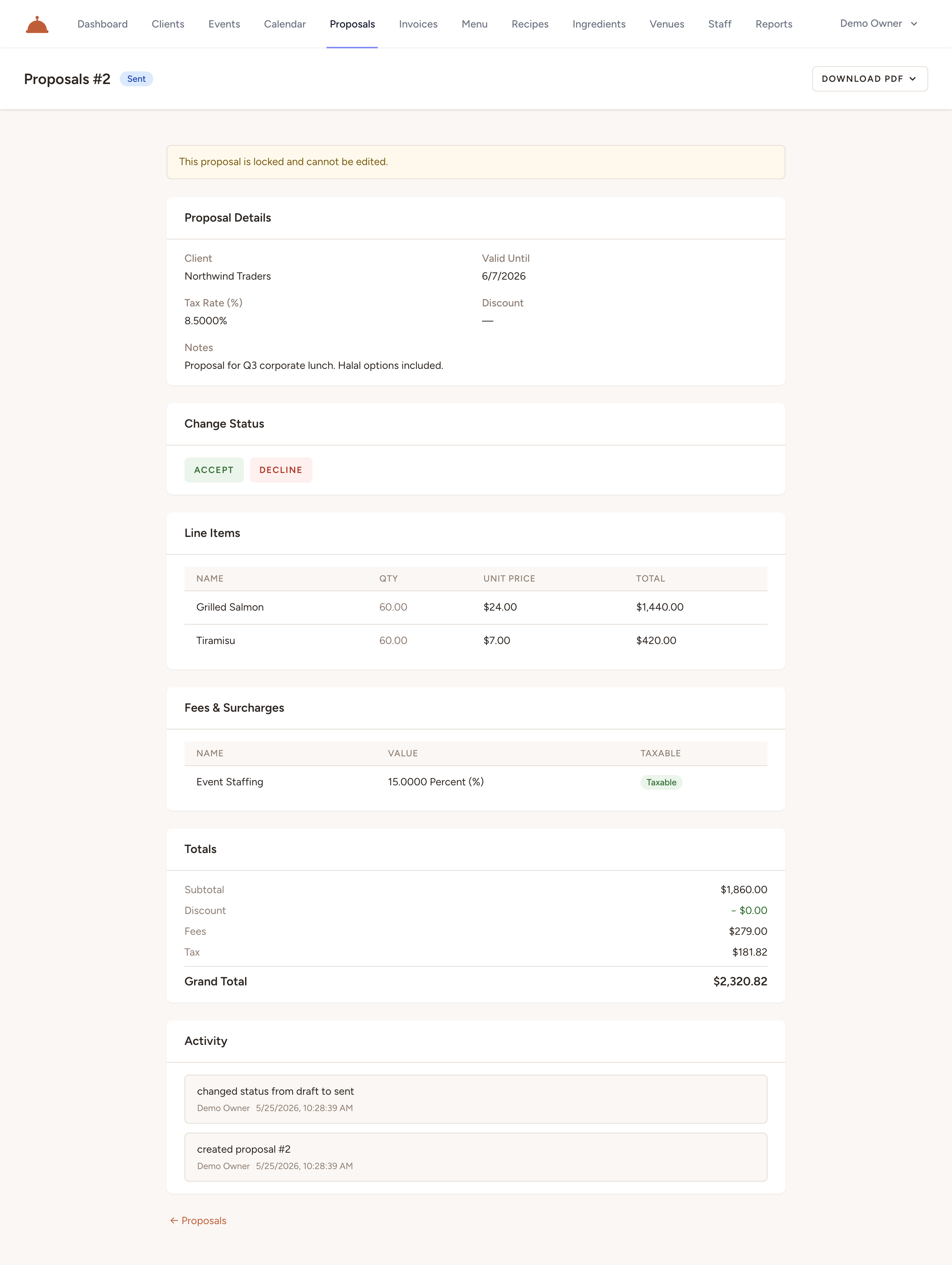
- Add line items sourced from your menu. Each line carries its description and unit price; set the quantity for the event.
- Add any fees (for example, a service charge or delivery fee).
- Set the tax rate and an optional discount (a percentage or a fixed amount).
- Catertoo recalculates the subtotal, discount, fees, tax, and grand total as you go.
- Add notes for the client if you'd like, and optionally a valid-until date.
Send it
When the proposal is ready, click Send. This moves the proposal from Draft to Sent and locks the line items, fees, and totals against further edits.
A sent proposal is locked. To change pricing after sending, you'll need a proposal that is still in Draft — locked proposals protect the figures your client is reviewing.
Acceptance
From the proposal you can record the client's decision:
- Accept — the proposal moves to Accepted, and you can turn it into an invoice.
- Decline — the proposal moves to Declined.

You can also download a branded PDF of the proposal to share.
What's next?
- Invoice and get paid once the proposal is accepted.