Organize clients with tags and notes
Tag clients to group them and use notes to keep context your whole team can see.
Last updated May 25, 2026
Tag a client
Tags are short labels you attach to a client to keep similar clients easy to identify. You can give a tag any name — for example, Corporate, Wedding, or Repeat.
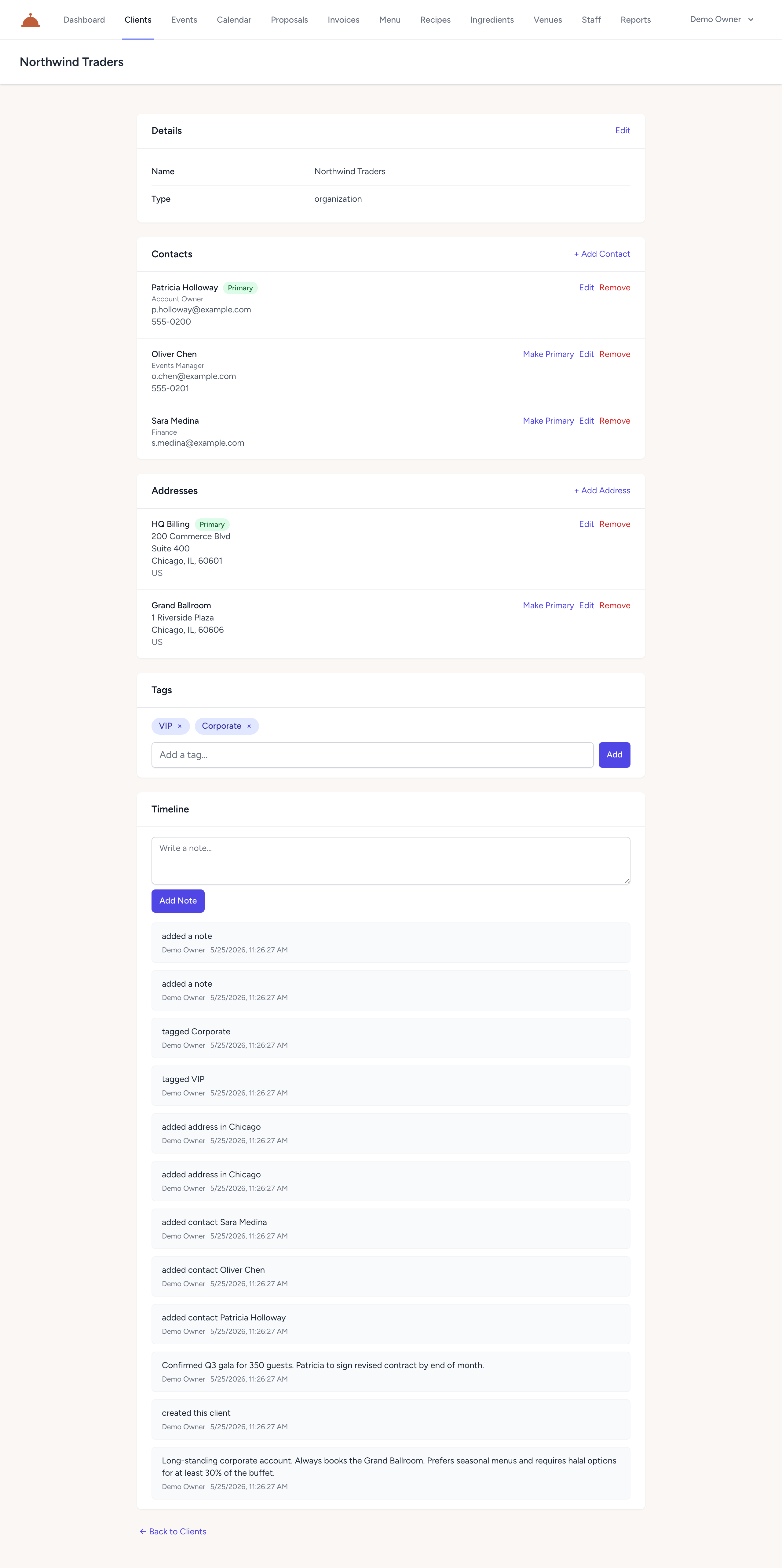
To tag a client:
- Open the client's detail page.
- Scroll to the Tags section.
- Type a tag name in the input field and click Add.
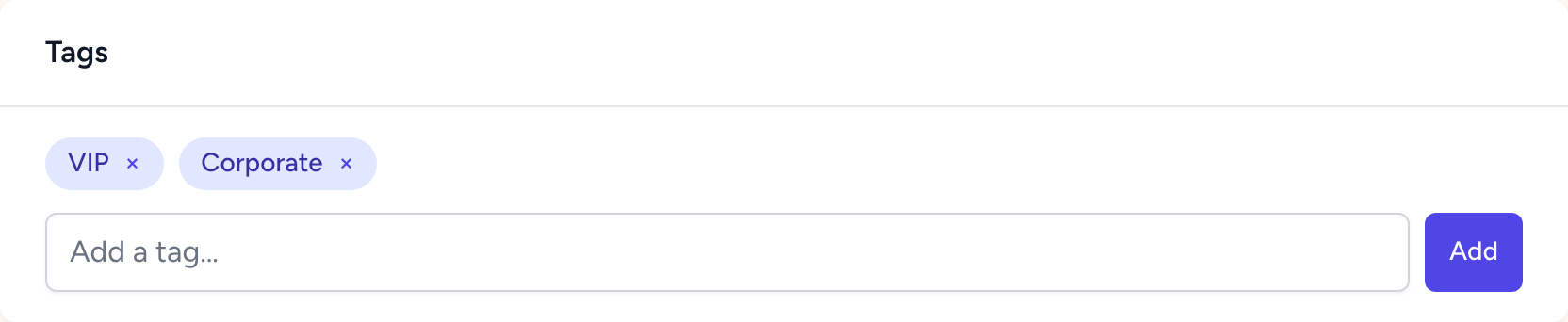
The tag appears as a colored chip on the client. You can add as many tags as you like.
To remove a tag, click the × on any tag chip. The tag is detached from the client but not deleted from your account — it remains available the next time you type that name.
Tags are visible on the clients list so you can see at a glance how each client is categorized.
Notes
Notes let you record anything that doesn't fit in a standard field — a preference the client mentioned, context from a past event, or a follow-up reminder.
Notes live in the Timeline section on the client detail page alongside automatic activity entries. The newest entry always appears first.
To add a note, type in the text box at the top of the Timeline and click Add note. Notes can be edited or deleted after they're saved, so they're easy to keep current.
What's next?
- Manage contacts and addresses to keep each client's details complete.
- Build a proposal for a client's upcoming event.