Manage clients and contacts
Create a client, add their contacts and addresses, set a primary, and keep a running notes timeline.
Last updated May 25, 2026
Add a client
Your client list is home base — every proposal, event, and invoice ties back to a client.
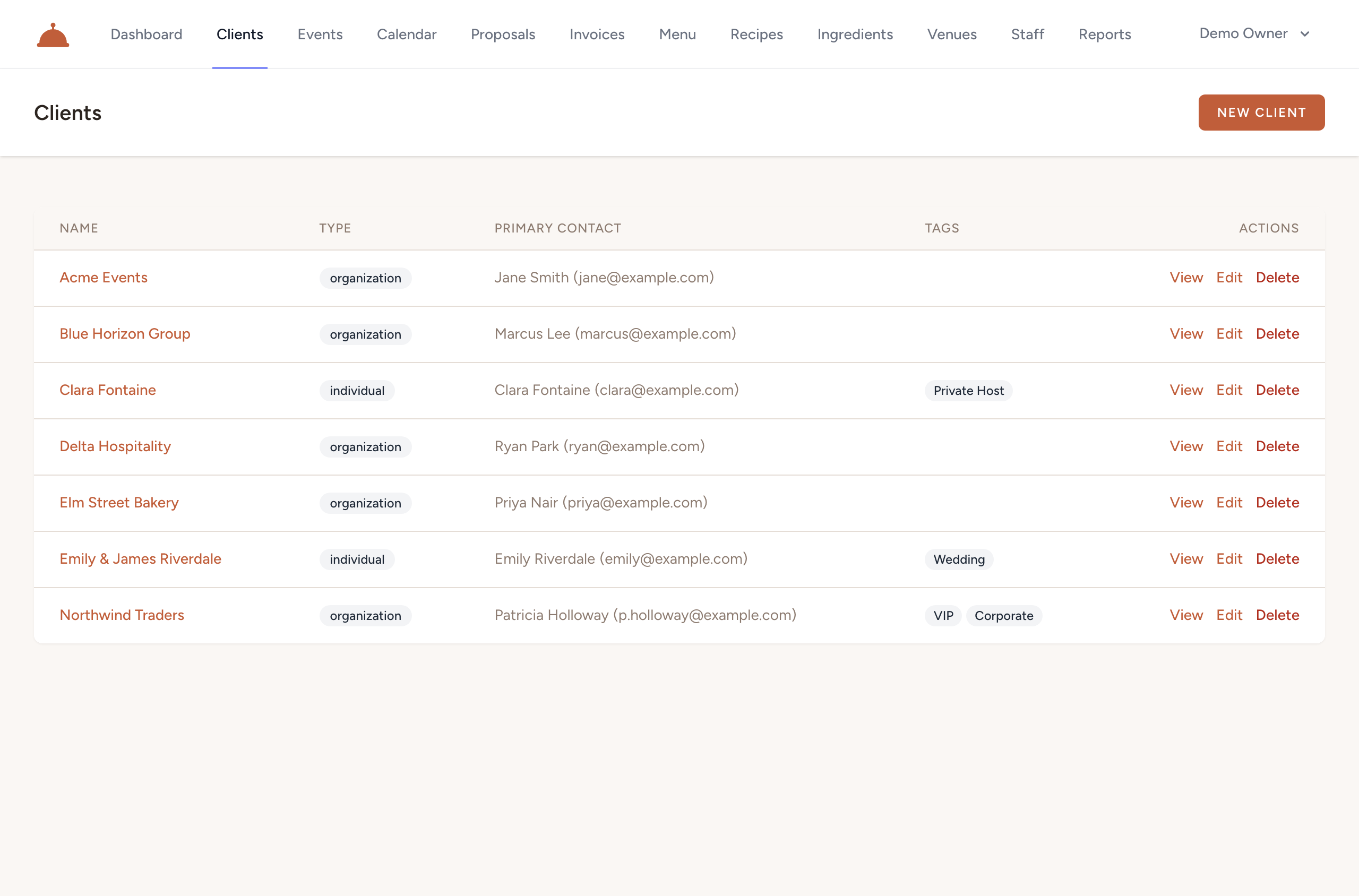
- Open Clients from your dashboard and click New client.

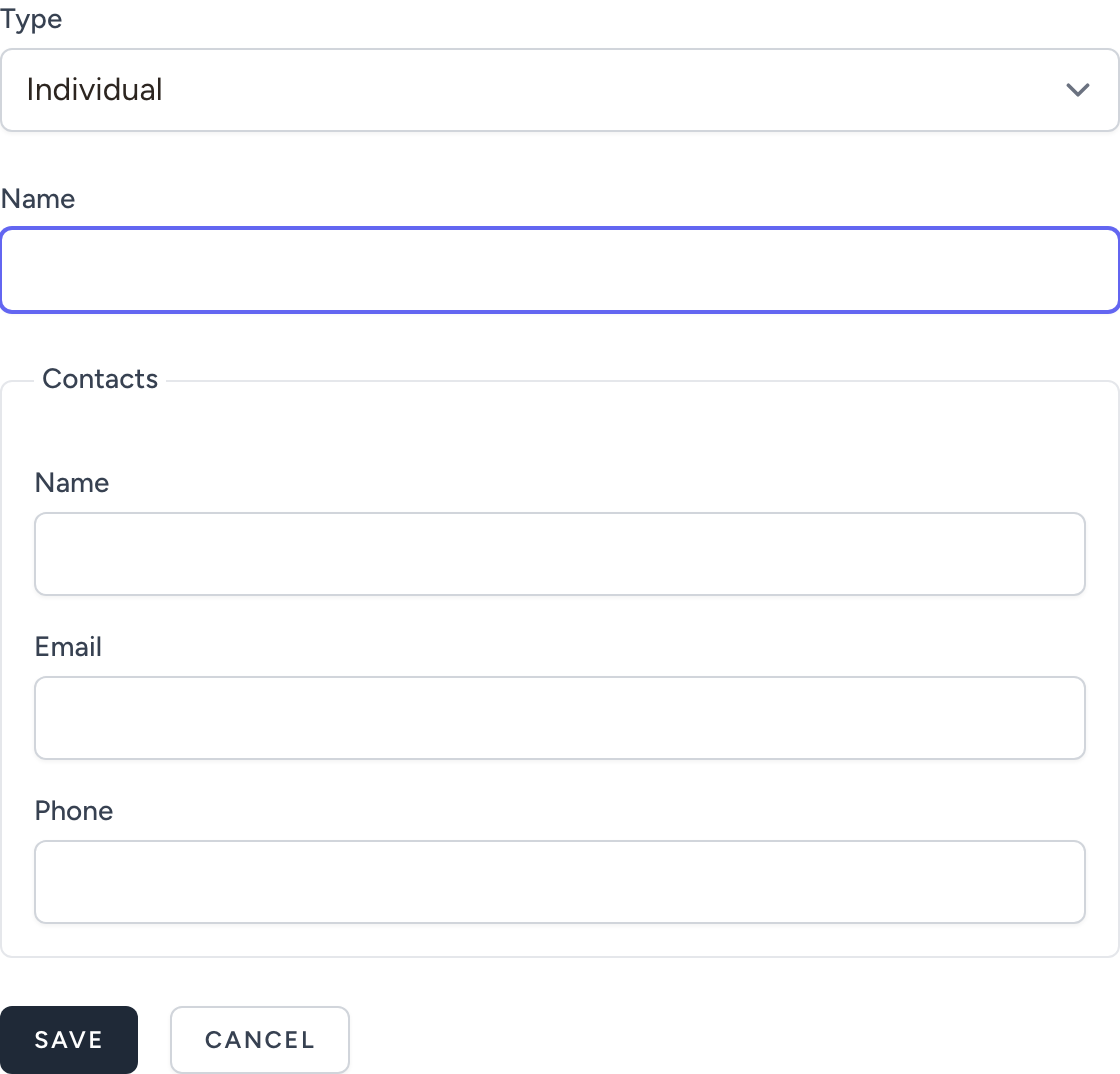
- Choose the client type — Individual or Organization.
- Enter the client name.
- If the type is Individual, you can also fill in an optional inline contact: name, email, and phone. This sets the first contact as primary automatically.
- Click Save. You land on the client detail page where you can continue adding contacts, addresses, and notes.
Contacts and addresses
A client can have multiple contacts and multiple addresses. Both work the same way: open the client, then use the Add contact or Add address button in each section.
Contacts — each contact has a name and optional email, phone, and job title. One contact is marked Primary; that's the name shown in the clients list. To promote a different contact, click Make primary next to it.
Addresses — each address has a type (Billing, Event, Mailing, or Other), an optional label, and the full address lines. One address is marked Primary. Use Make primary to change it.
You can edit or remove any contact or address at any time from the client detail page.
Timeline
The Timeline section on the client detail page shows a combined, newest-first feed of notes and activity. Activity entries are added automatically when things change (for example, when a client is created or updated). Notes are free-text entries your team adds manually.
To add a note, type in the text box at the top of the timeline and click Add note. Notes can be edited or deleted after they're saved.
What's next?
- Organize clients with tags to group related clients together.
- Build a proposal for a client's upcoming event.